Introducing AI Image: Create and Edit Images in LeapFun
Make thumbnails, product visuals and story scenes next to your AI voiceovers, on the same credits.
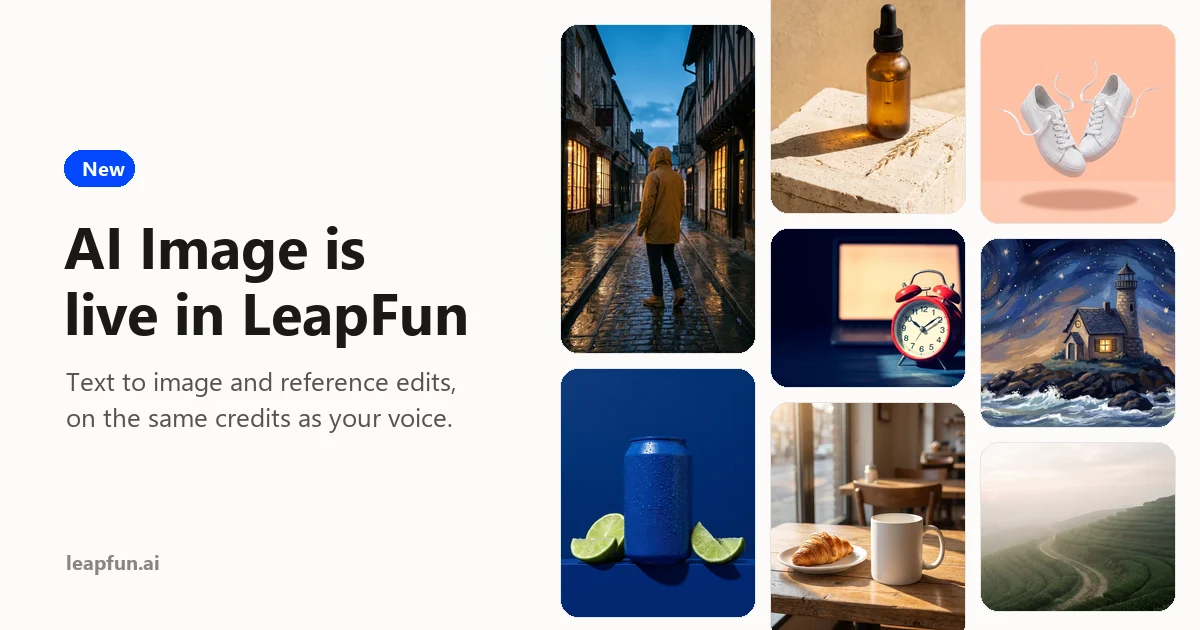
Starting November 5, 2026, every LeapFun account can make images. AI Image sits in the same workspace as Text to Speech, Voice Design and Audiobook Studio, and it spends the same credits. Describe the picture you want, or add your own images as references and describe the change.
What's new
How it works
1. Describe the image and pick the settings
Write what you want to see: the subject, the setting, the light and the style. Under the box, choose the quality, the aspect ratio and how many images to make. The total price is on the Generate button before you click, so there are no surprises.
2. Add reference images to edit
Click Reference to add an image you own: a product photo, a scene, a style you like, or an earlier result. You can add up to eight per run (JPG, PNG or WebP, up to 20 MB, at least 512 px on the shorter side). The first time, LeapFun asks you to confirm you have the rights to the image.
Then describe the change. Reference images don't add to the price; it still depends only on the quality and the number of images.
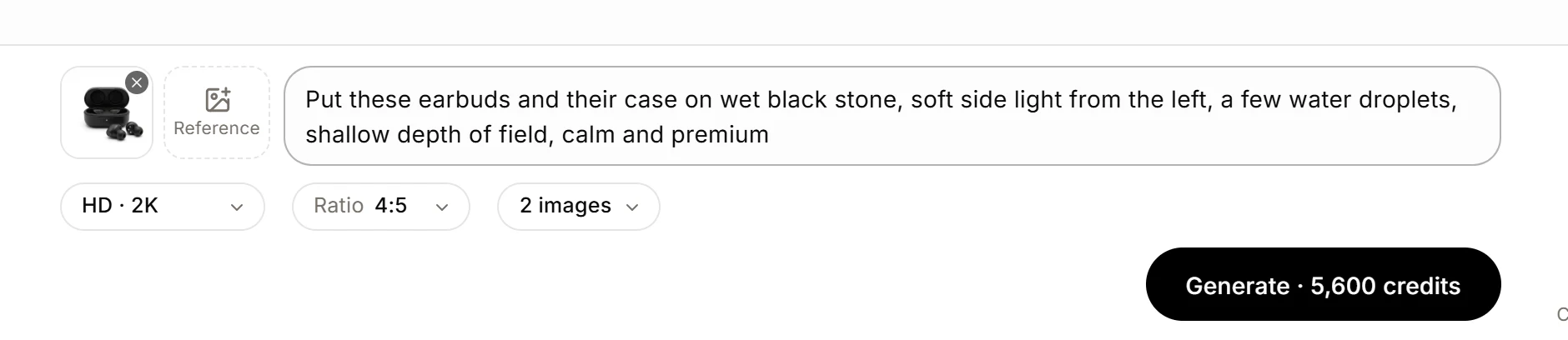
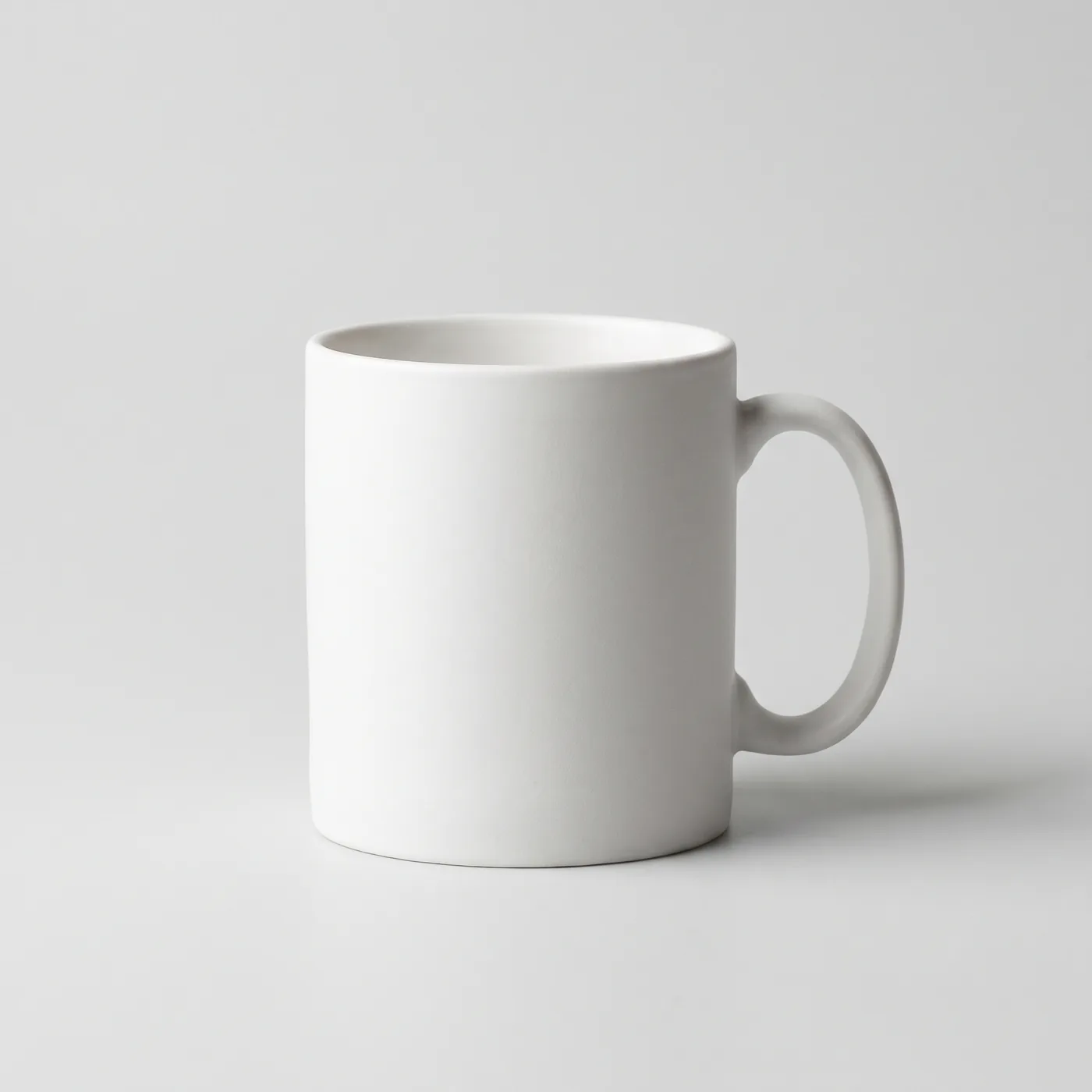
Here is what a reference edit looks like. The plain product photo on the left was the reference; the image on the right came back from the description underneath it, with the mug's shape and finish kept.
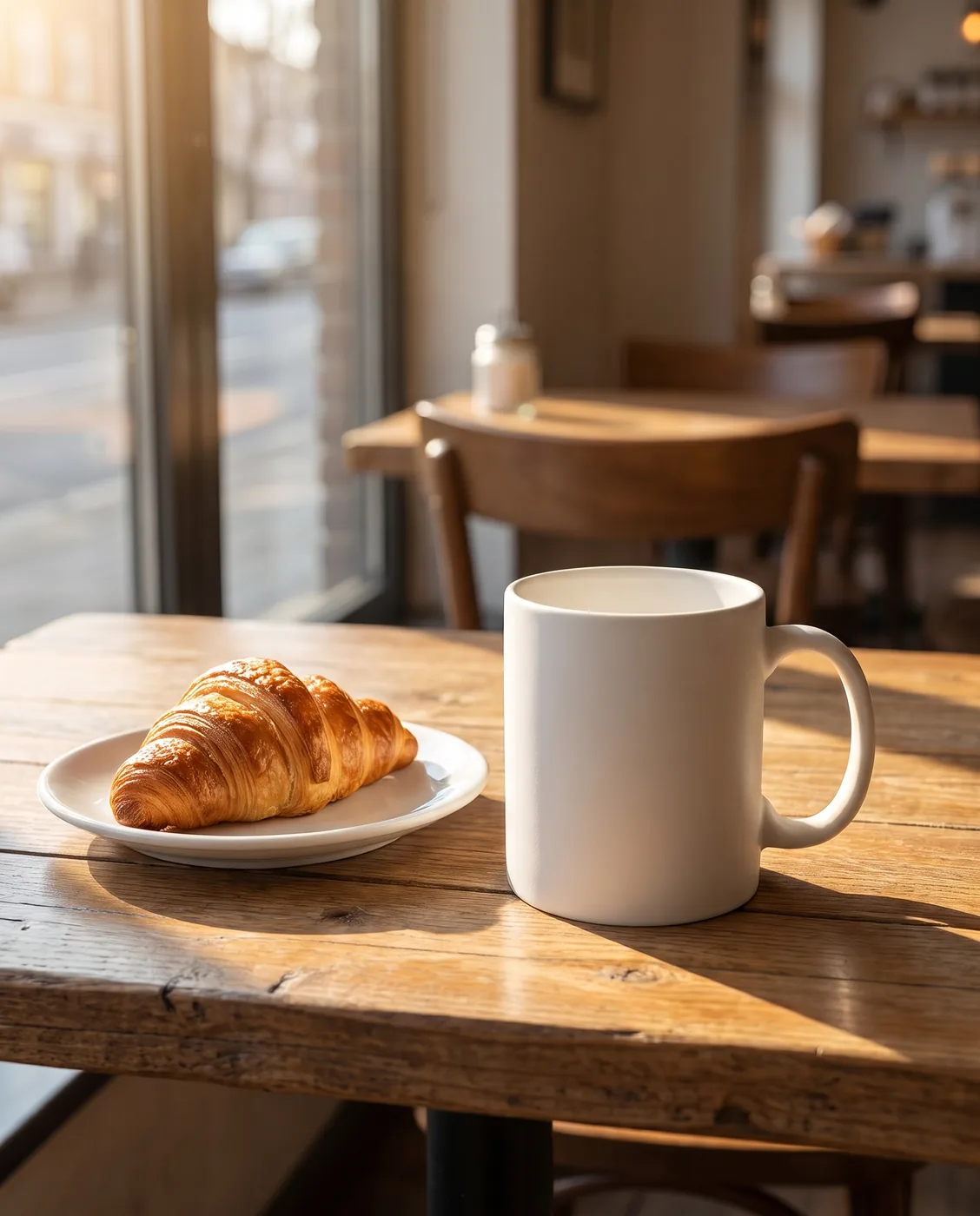
3. Keep, refine or download
Each result has Download, Favorite, Use as reference and Generate again. To change one thing, use the take you like as a reference and describe the next step, for example “same scene, warmer light”. Your images stay in your workspace until you delete them.
Made with AI Image
These images were made with AI Image at HD (2K), one take per description and no retouching. Each caption is the description used, word for word, so you can copy it and try it yourself.
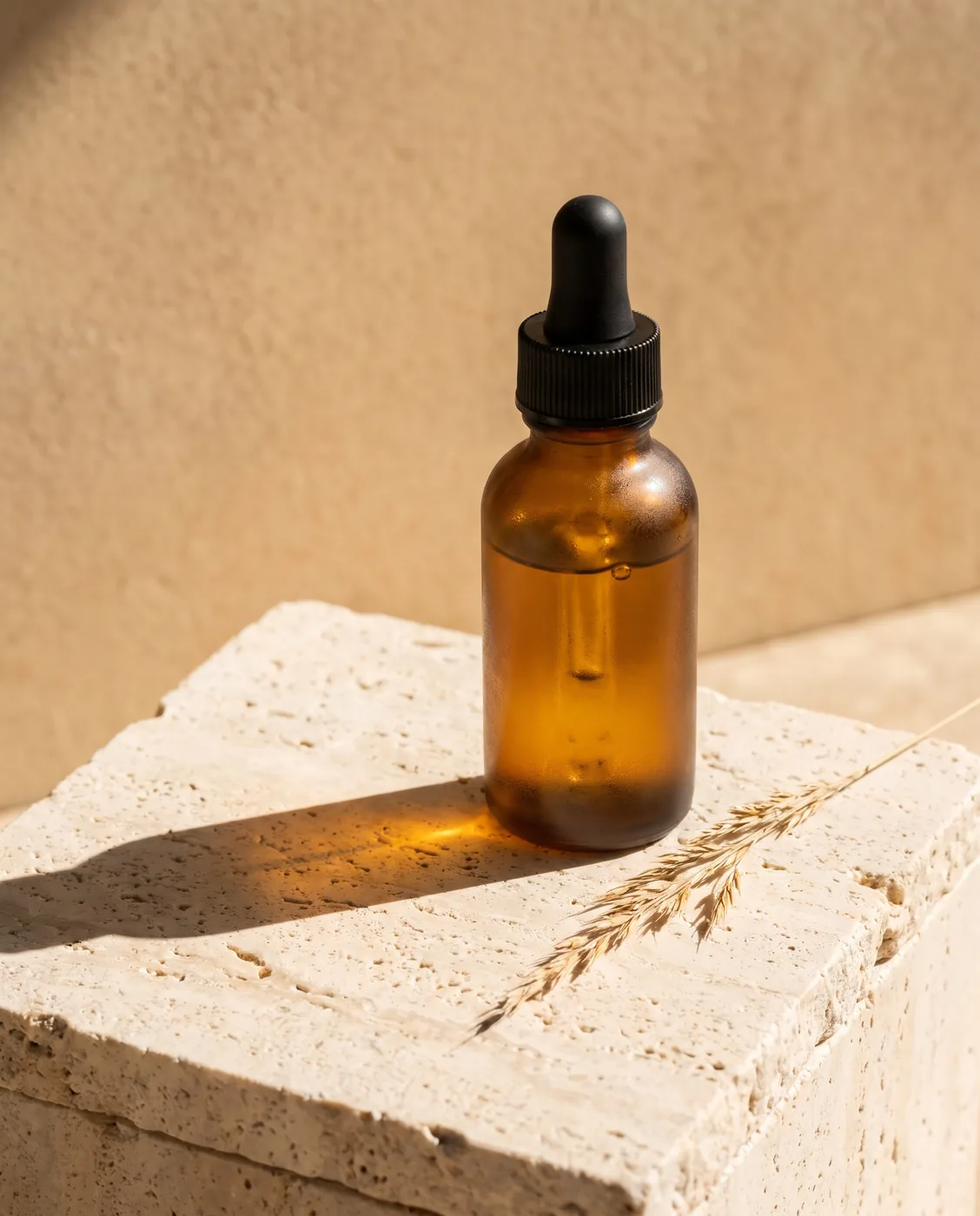
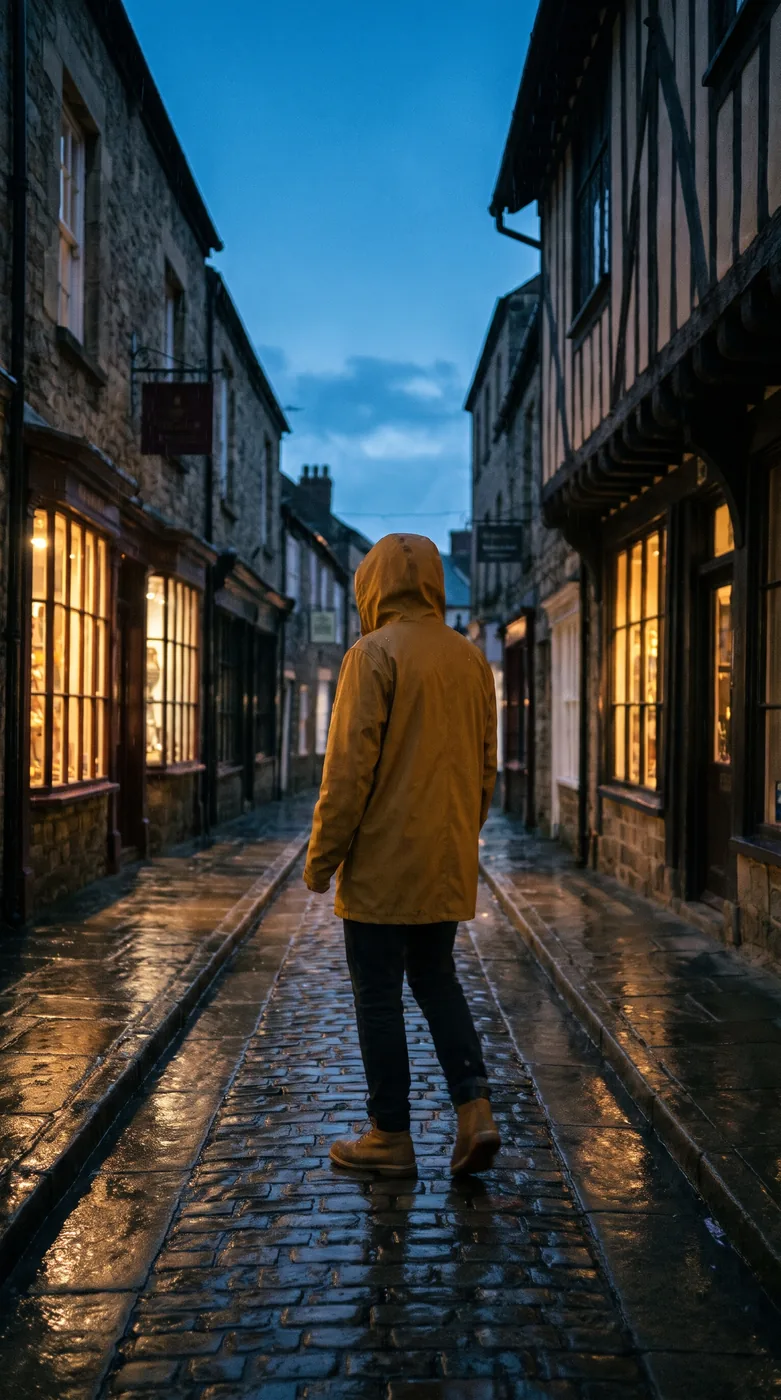
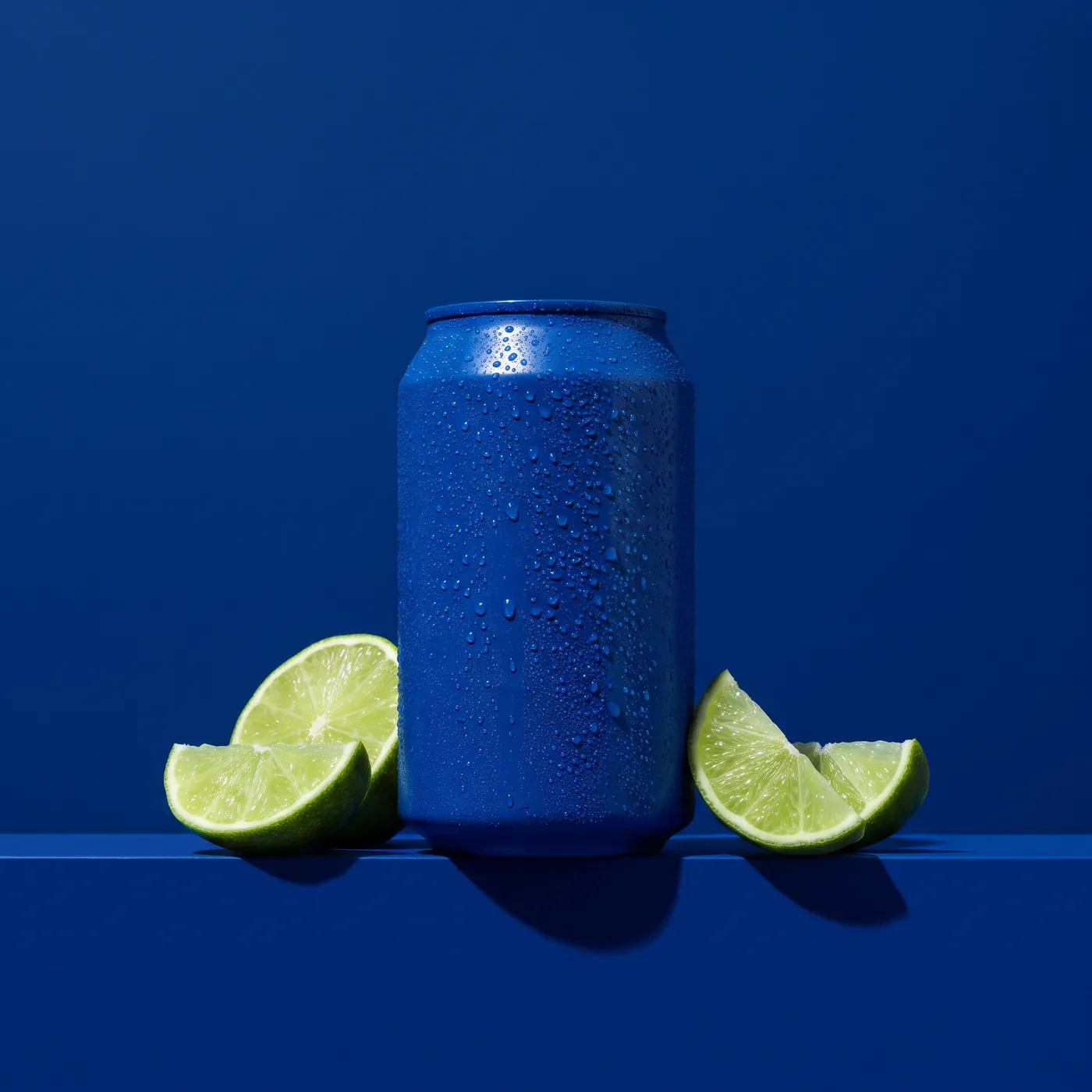
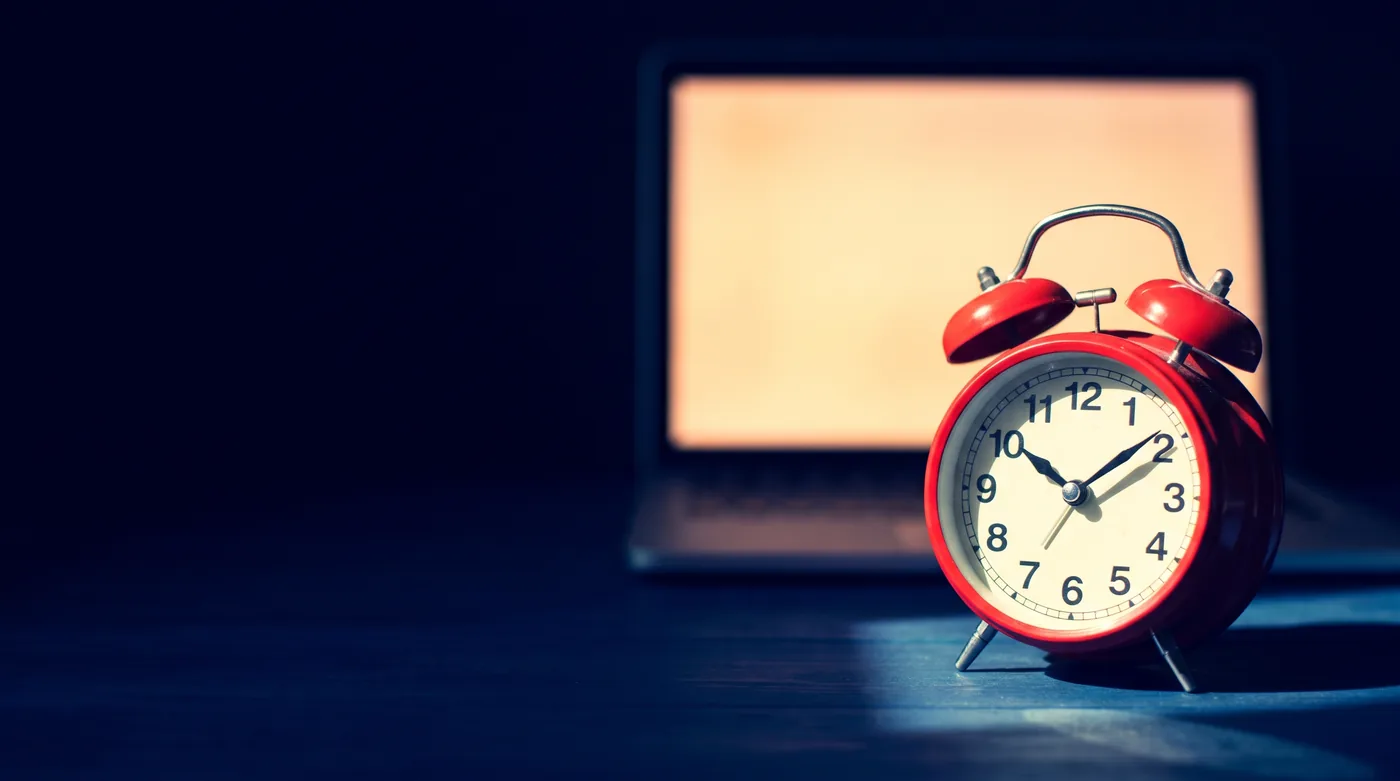
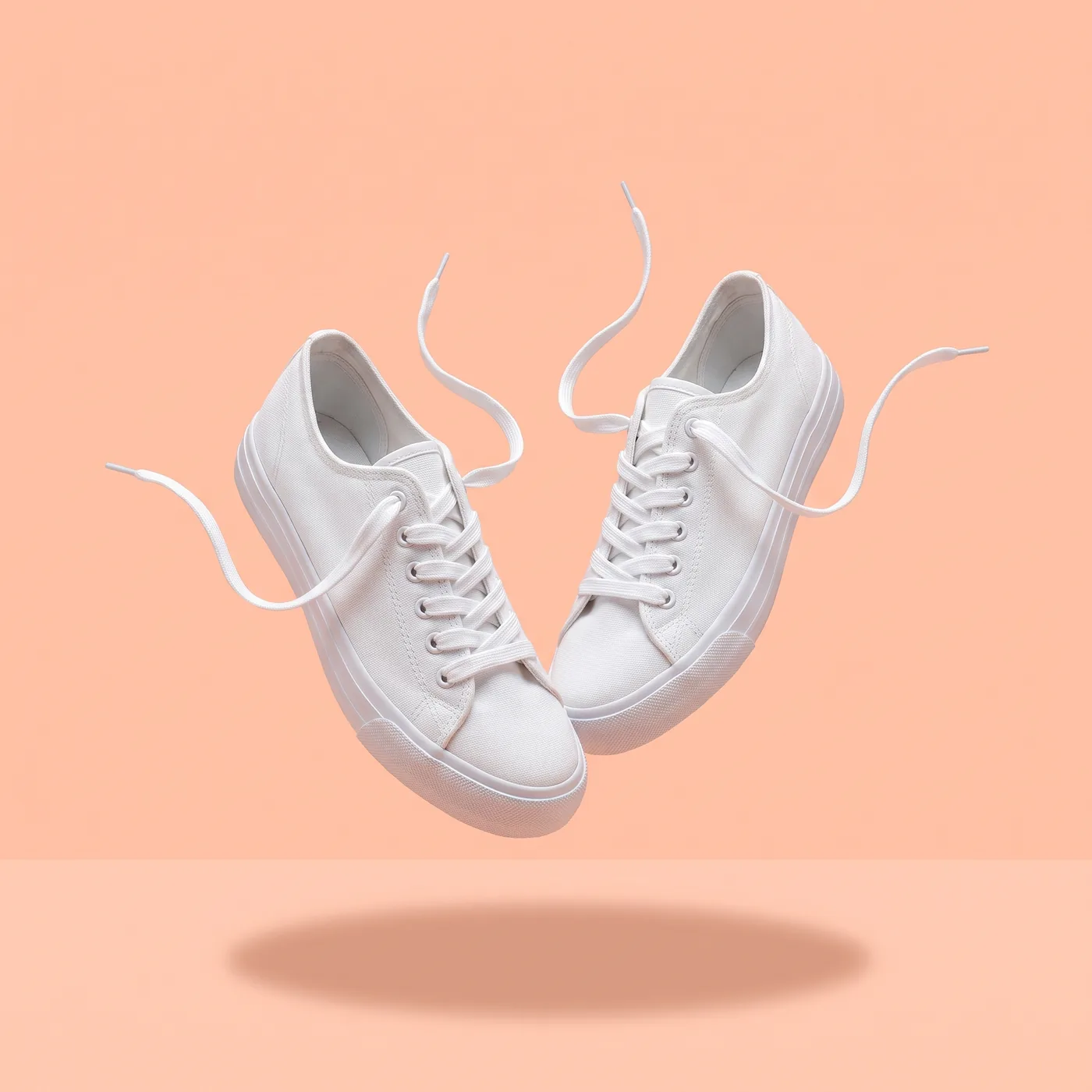
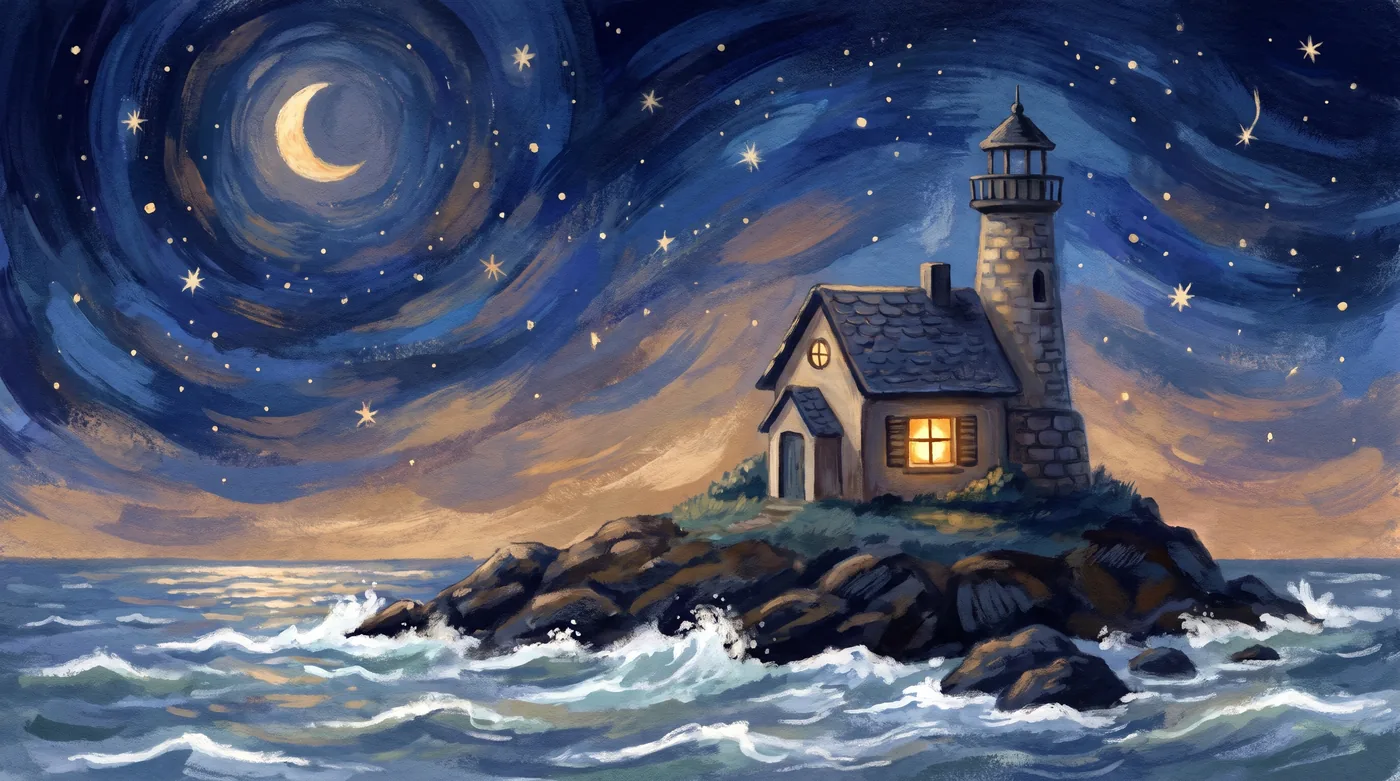
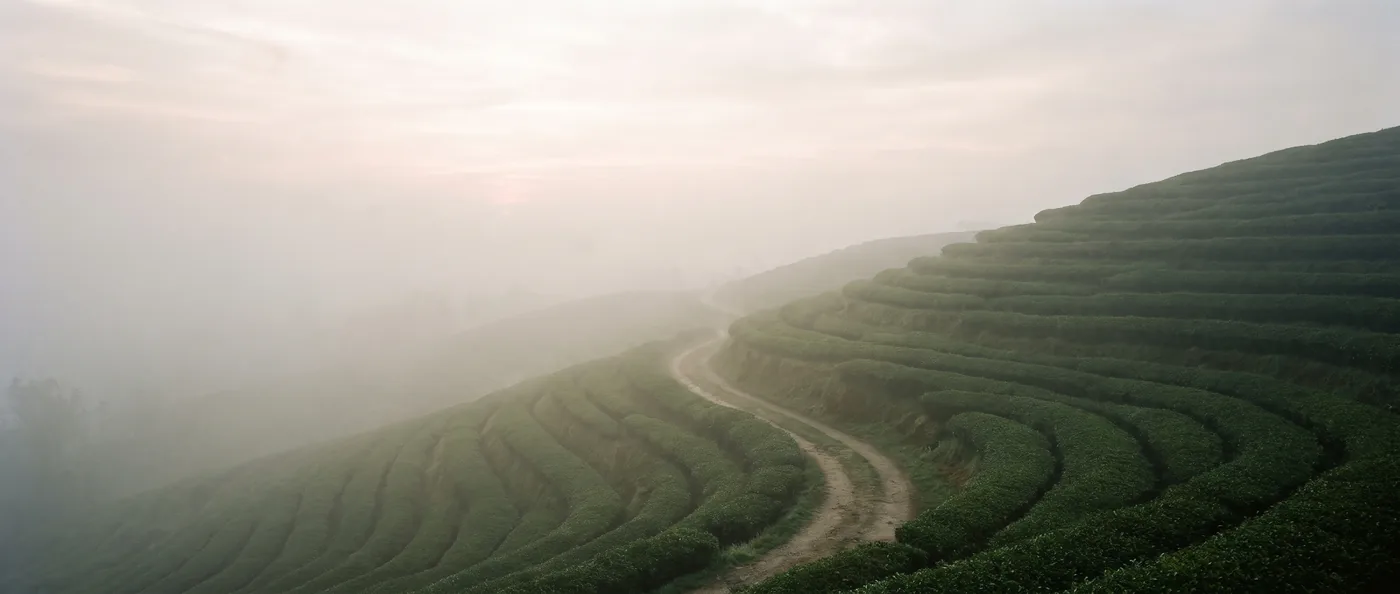
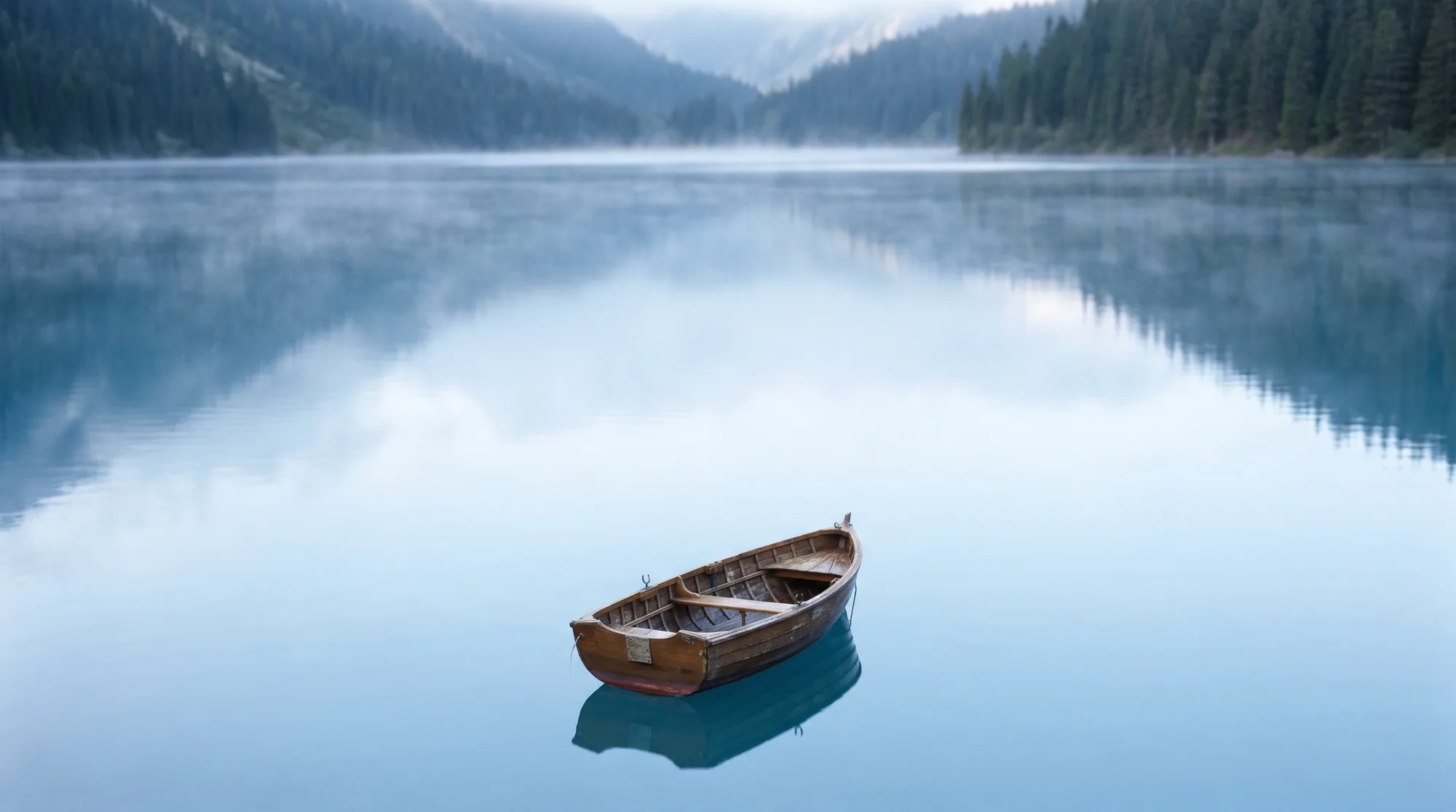
Want more starting points? See 50 AI image prompts by style.
Plans and credits
Images are paid from your normal credit balance, the same one your voiceovers use. Each image costs a fixed number of credits, and the price shows on the Generate button before you click.
| Quality | Size | Plans |
|---|---|---|
| Standard | 1K | Every plan (Free: up to three images per account) |
| HD | 2K | Starter and up |
Commercial use is included from Starter. If any image in a run is blocked by the content check, the whole run is refunded and its images are removed, and the card offers “Rewrite it for me” to reword your description. Current rates are on the pricing page.
Images and voice in one workspace
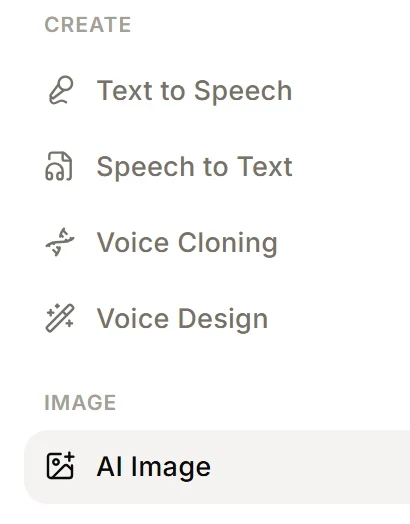
AI Image is in the sidebar next to the voice tools, and both draw on one credit balance. There is no second subscription to manage.
That makes a few jobs quicker:
- YouTube: make the thumbnail and the narration for the same upload. Our thumbnail guide walks through it.
- Product ads: put your product in a new scene, then record the ad read. See product photos and AI voice for video ads.
- Story channels: illustrate each scene and narrate it with a voice you designed for the channel.
Good to know
- Sizes: Standard is 1K and HD is 2K. There is no 4K option.
- Text in images: a short headline can work, but spelling isn't guaranteed. Check every letter, or add exact text in a design tool.
- People: photos of real people can't be used as references, and uploads with a face are rejected.
- Edits are new images: a reference edit creates a fresh picture, so labels, logos and fine details can change. Compare the result with your original before you use it.
- Free images: free Standard images carry a small corner mark and are for personal and evaluation use.
Frequently asked questions
Is AI Image free to try?
Yes. Each Free account can create up to three Standard (1K) images with the credits you get on sign-up. They carry a small corner mark and are for personal and evaluation use. No card is needed.
Which plans include HD?
HD (2K) images are available from the Starter plan ($6 a month). Standard (1K) is available on every plan.
Can I use the images commercially?
Yes, from the Starter plan up, the same as audio. Free images on the Free plan are for personal and evaluation use.
Can I upload a photo of a person to edit?
Not at the moment. Photos of real people aren't supported as references, and uploads that contain a face are rejected. Products, objects, places, illustrations and your earlier results all work.
How many images can I make at once?
Up to four per run (one on the Free plan), with 11 aspect ratio options: Auto plus 10 fixed ratios from 9:16 to 21:9.
Make your first image
Sign up free and your 3,000 credits cover up to three Standard images. No card needed.
Open AI Image